 DeepTranslate
3 Methods: How to Change Language on Amazon 2026
Shop Amazon globally with bilingual view.
Understand every product instantly—no region switching required.
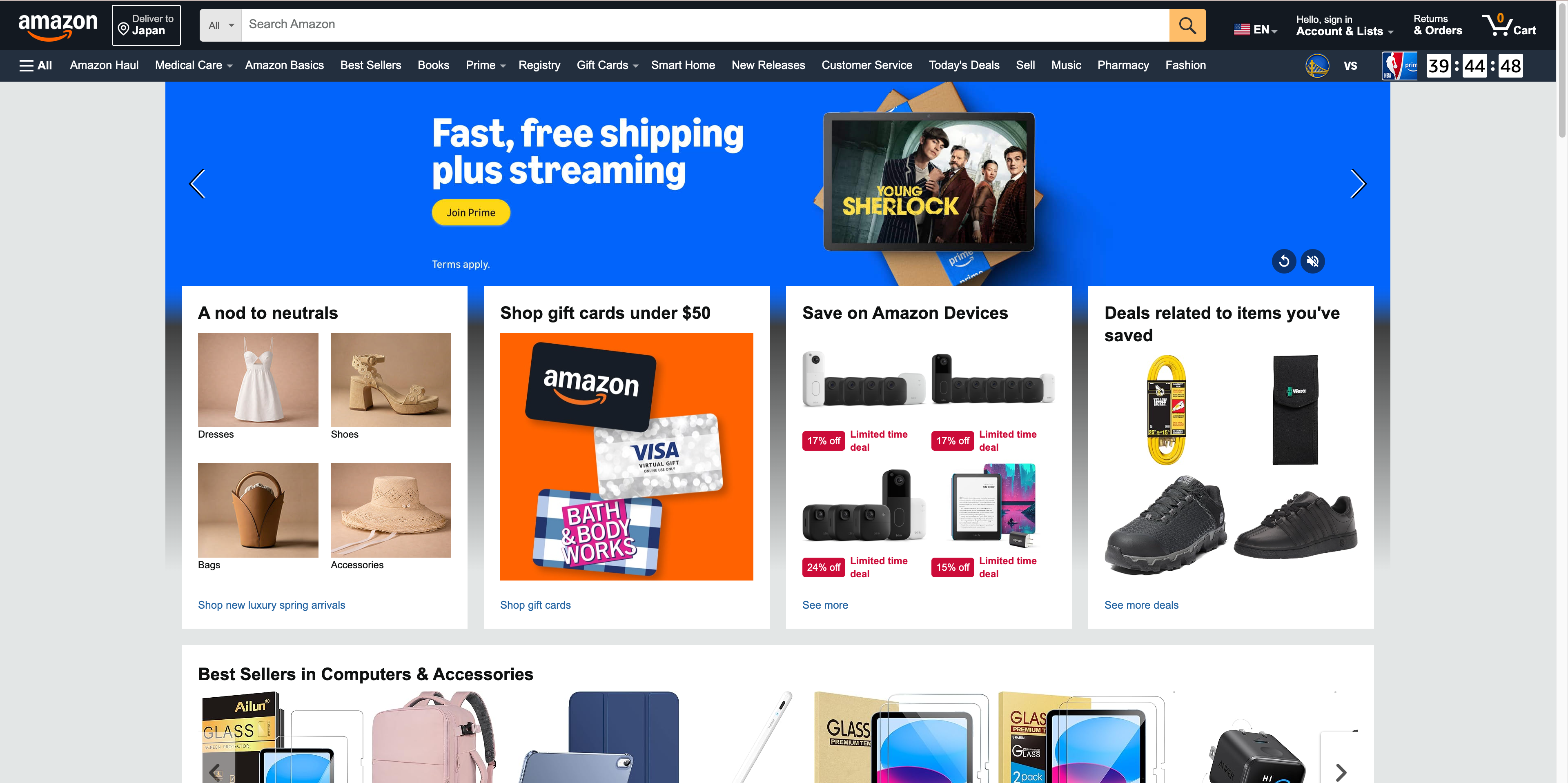
Today, when most people become consumers, the necessity of using Internet shopping services is evident. This is true because Amazon is one of the biggest global e-commerce companies, and customers from all over the world use the platform. Still, it would prove rather cumbersome to navigate the site if one has little understanding of the language used. Many users find themselves wondering, "Why is my Amazon in a different language?" and searching for solutions.
For a foreigner living in a new country, for a language learner, or for someone who enjoys shopping in another language, being able to master how to change language on Amazon can greatly improve your experience. Now, if you are ready to dive into the most detailed guide on changing the language of Amazon in 2026, let's explore three efficient methods of doing it for both the Amazon website and application.
Shop Amazon globally with bilingual view.
Understand every product instantly—no region switching required.
How to Change Language on the Amazon Website
Modifying the language on the Amazon website can be done in the following three ways. Now, let's discuss each of them in more detail.
How to Switch Language on Amazon via DeepTranslate
For the bilingual page function and the entire translation, we strongly suggest everyone use the DeepTranslate browser extension. This great tool can easily translate Amazon without making modifications to your account. To use DeepTranslate:
- DeepTranslate can be installed from your web browser's store as an extension.
- After installation, open the Amazon homepage.
- Tap on the DeepTranslate icon on the bar at the top of the browser.
- Please choose your language in the language list provided below.
- There is 'Bilingual' mode, which transcribes the original text and translates it, and there is 'Entire' mode, which replaces the original text with the translation.
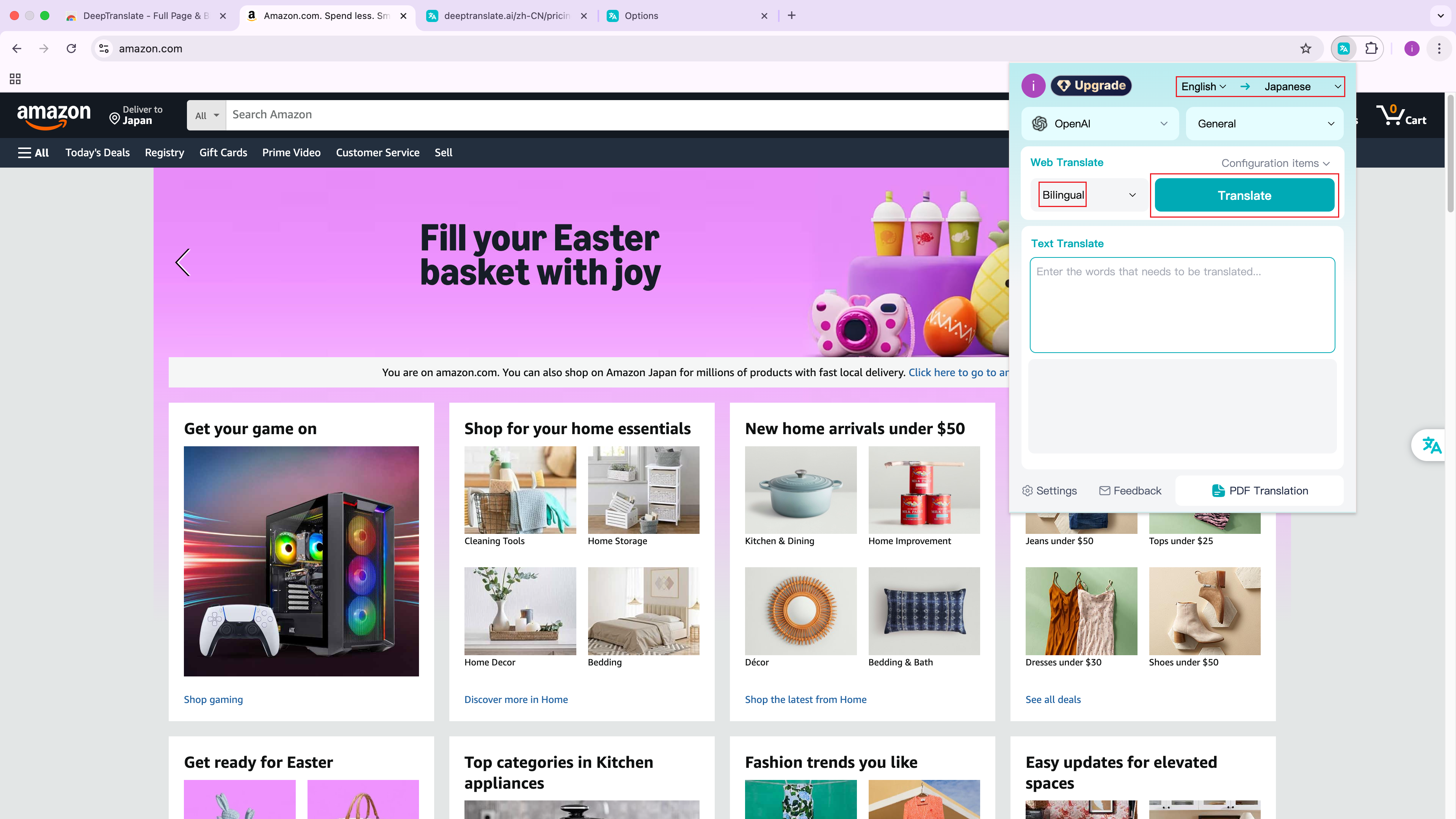
The critical differentiation feature of DeepTranslate is intelligent language recognition, which allows the tool to identify more than 140 languages, making it the perfect choice for an Amazon buyer. This means that DeepTranslate can handle the translation effortlessly if you are browsing Amazon.com, solving the issue of why is my Amazon in a different language? without changing your account settings.
Shop Amazon globally with bilingual view.
Understand every product instantly—no region switching required.
Some key advantages of using DeepTranslate :
-
Because DeepTranslate supports multiple languages, users from various countries can use their existing Amazon accounts without needing to change any account settings.
-
Translation as you scroll
-
The bilingual interface facilitates comparison and understanding of product descriptions written in foreign languages, which is considered a great advantage when it comes to translation.
-
It saves your browsing history and recommendations in your original language.
How to Change Language Preference in Amazon
If you prefer to change the language directly within Amazon's settings, follow these steps to change language on Amazon:
- Using a PC or other internet-capable device, Open the Amazon website in your browser and sign in to your account.
- Locate the language selector near the search bar or under your account name.
- Click the language option to open the list of available languages.
- Select your preferred language, such as English, Spanish, German, French, Italian, or Japanese.
- The page will automatically refresh and display content in the selected language.
Please note that changing the language in Amazon's settings will affect the entire website experience, including product descriptions and customer support.
Shop Amazon globally with bilingual view.
Understand every product instantly—no region switching required.
How to Change Amazon Country
Changing your Amazon country can also affect the default language and may explain why Amazon appears in a different language. To change your Amazon country:
- Scroll to the bottom of any Amazon page.
- Click the country or flag icon displayed near the bottom of the page.
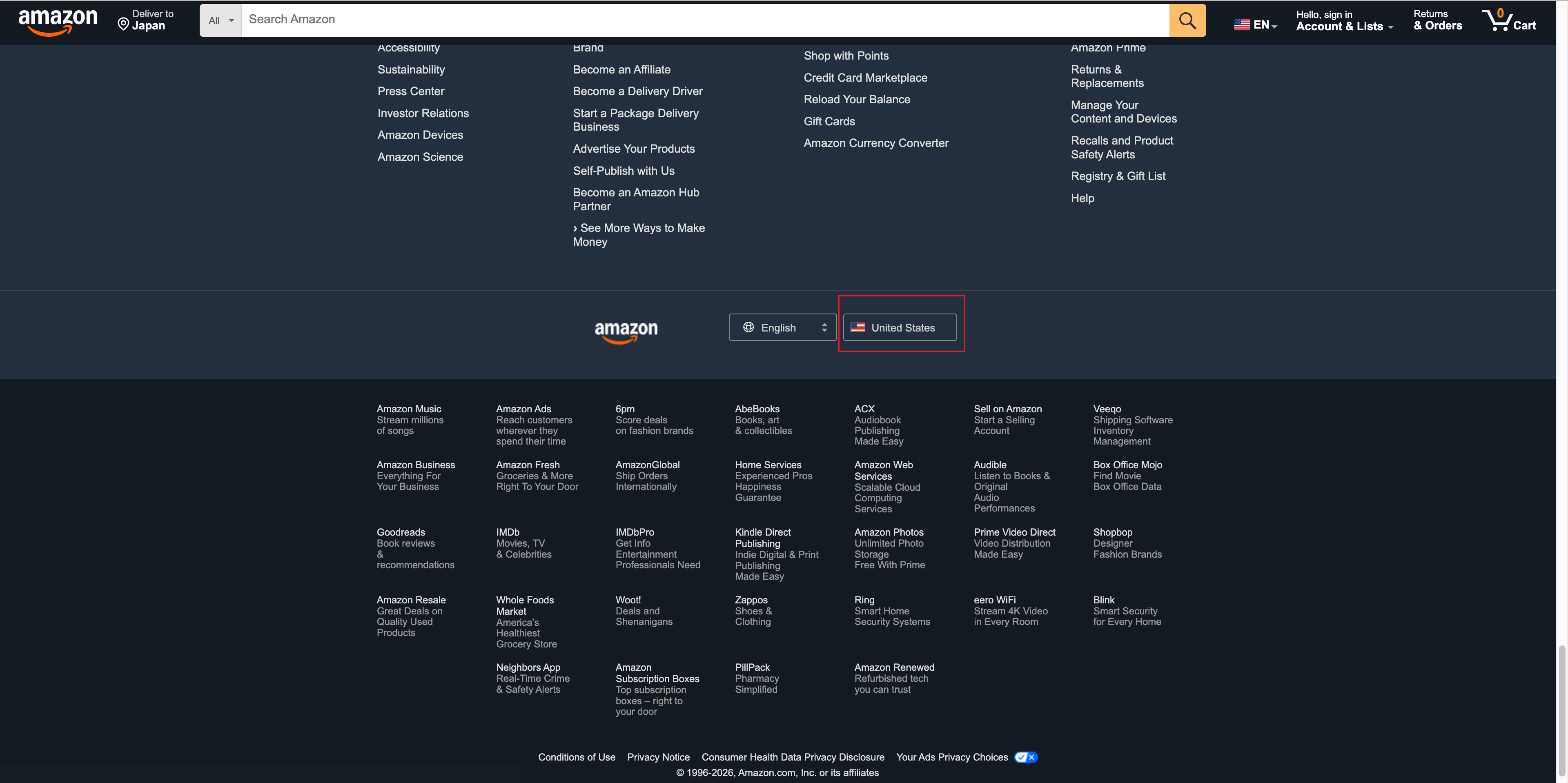
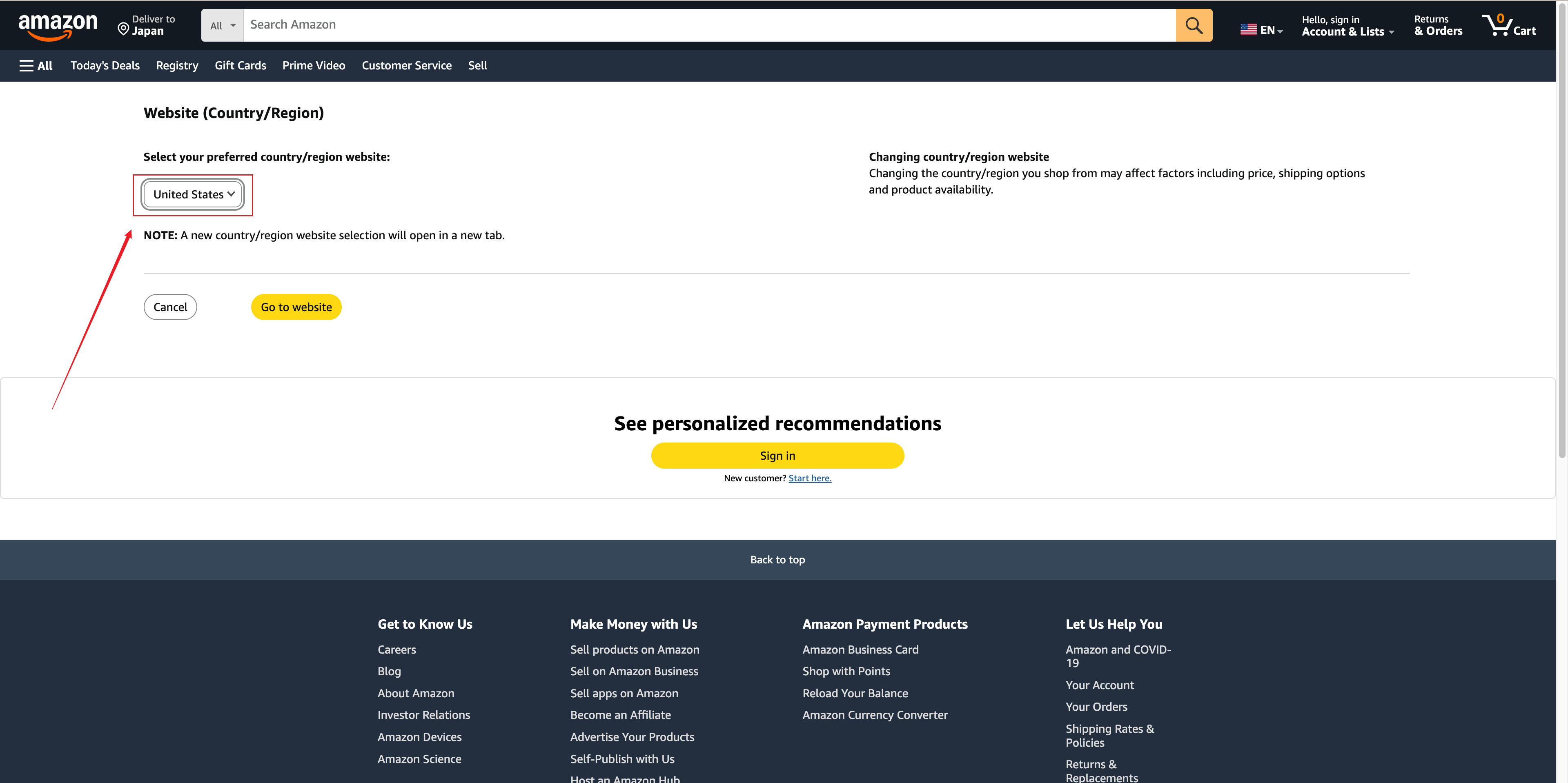
- Amazon will redirect you to a page where you can choose your preferred country or region. Click the drop-down menu under "Select your preferred country/region website" and select the country or region you want.
Shop Amazon globally with bilingual view.
Understand every product instantly—no region switching required.
- You will be redirected to the country-specific Amazon website, which may use a different default language. Common Amazon country options include:
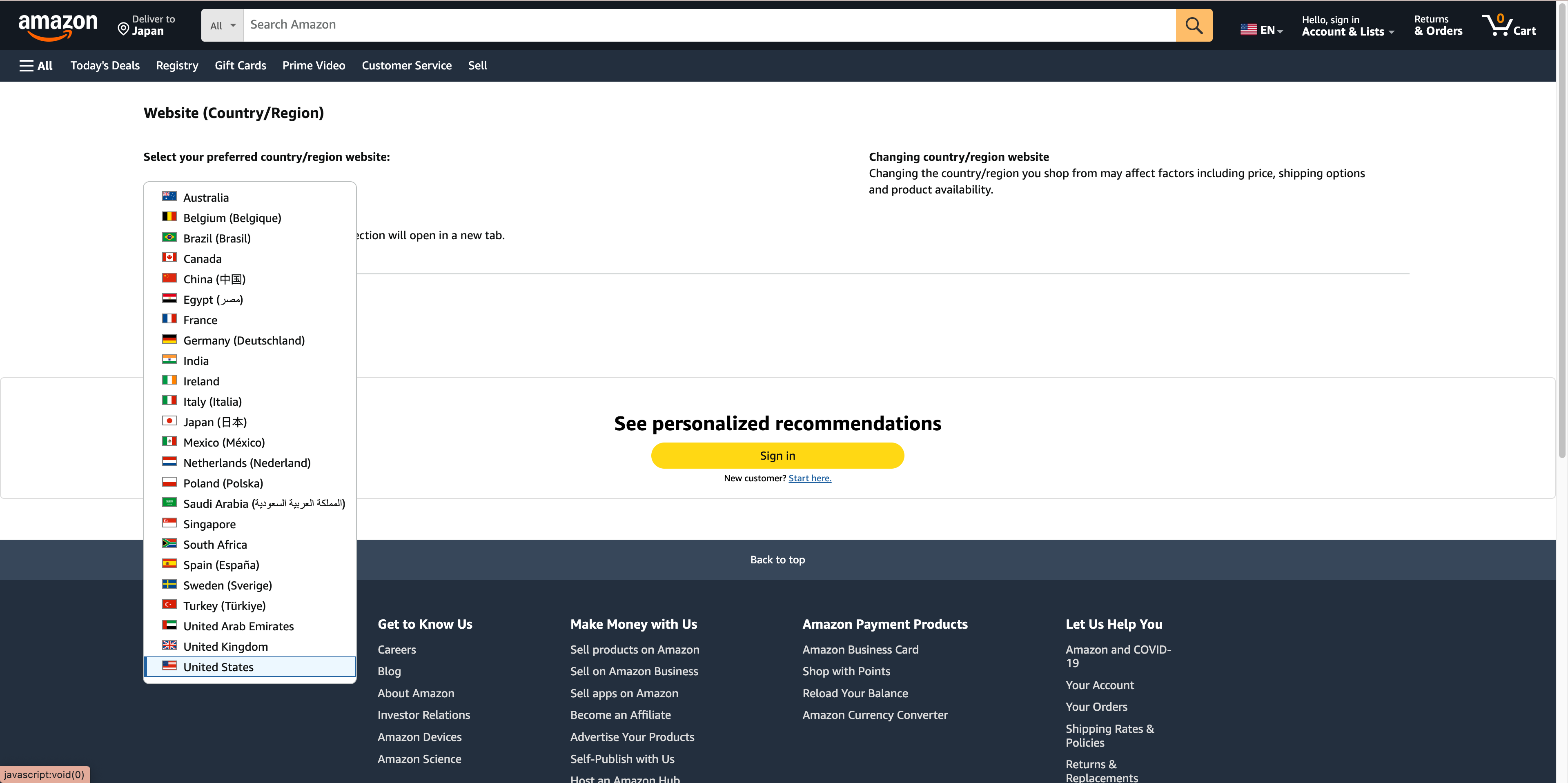
It's important to note that many users encounter difficulties in switching the webpage language because they enter the wrong domain name. To ensure you're on the correct Amazon website for your region.
- Click "Go to website" to open the Amazon site for the country or region you selected. Amazon may automatically redirect you to that country or region's homepage.
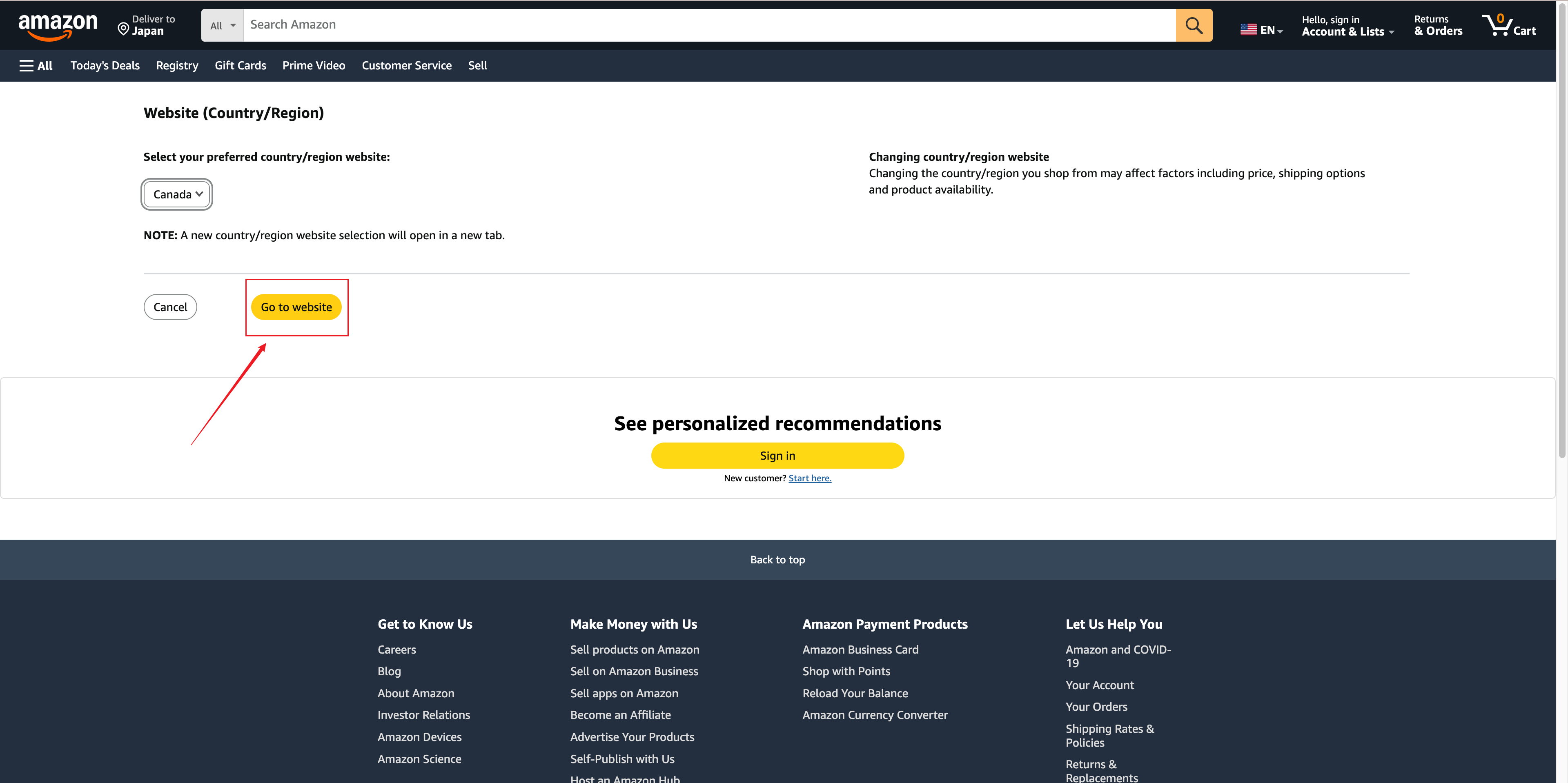
Please note that changing the language in Amazon's settings will affect the entire website experience, including product descriptions and customer service pages.
By contrast, DeepTranslate offers a key advantage: you can view Amazon sites from different regions without switching regions or domains. For example, you can browse Amazon.de in English or Amazon.com in Spanish without changing any account settings.
This is especially useful when comparing prices across different Amazon marketplaces or purchasing products from international sellers.
Shop Amazon globally with bilingual view.
Understand every product instantly—no region switching required.
How to Change Language in the Amazon App
If you prefer to use Amazon on your phone, here's how to change language on Amazon in the mobile application.
- Open the Amazon app on your iPhone or Android device.
- Tap the menu icon (☰) in the app.
- Scroll down and tap Settings or App Settings (the wording may vary by device and app version).
- Tap Country & Language or a similar option.
- Select your preferred language from the list.
- Depending on the language you choose, the app may require a restart. In some cases, the change will take effect immediately.
Conclusion
It is easy to change the language on Amazon, and doing so can significantly improve your overall shopping experience. Whether you are using the Amazon website or the mobile app, the methods introduced above allow you to browse and shop in your preferred language with ease.
While Amazon's built-in language and localization settings are useful, one of the most flexible solutions is the DeepTranslate browser extension. It supports almost all major languages and allows you to translate Amazon pages without switching regions or domains. This means you can shop on Amazon.de with an English interface, or browse Amazon.com in Spanish, without changing your account settings or default country.
Amazon automatically localizes content based on your location, browser settings, or previous preferences, which is often the reason users ask, "why is my Amazon in a different language?" By adjusting your language settings or using a translation tool like DeepTranslate, you can maintain a consistent language experience across different Amazon regions and enjoy a smoother, more convenient shopping journey.
If you are still wondering why is my Amazon in a different language?, it is likely due to regional detection or saved preferences. Simply follow the methods outlined above to switch it back to your preferred language.